

Computer Use
Experimental. Let the model operate one app window on your Mac, step by step, while you watch.
Computer Use lets the model work an app the way a person would: it looks at a screenshot of one window, moves a virtual mouse and types, then looks again. It is useful for apps that have no other way in.
Experimental
Computer Use is an early version. It is slow, it can misread the screen or click the wrong thing, and it only acts while the app it works in is in front of every other window. Watch it while it works, and stop it with ⌥⇧⎋ if it goes astray. The Settings → Computer Use page carries the same notice.
It is off by default and macOS only. To set it up, open Settings → Computer Use:
- Enable Computer Use.
- Add the apps it may touch under Allowlisted apps — pick from the apps installed on this Mac. It never touches anything else, and never Actovia itself. An allowlisted app that is not running is opened for it.
- Optionally set Max steps (default 25) and Settle delay (how long to wait after each action before the next screenshot, default 800 ms).
The model needs to be one that understands images.
Allow it in macOS
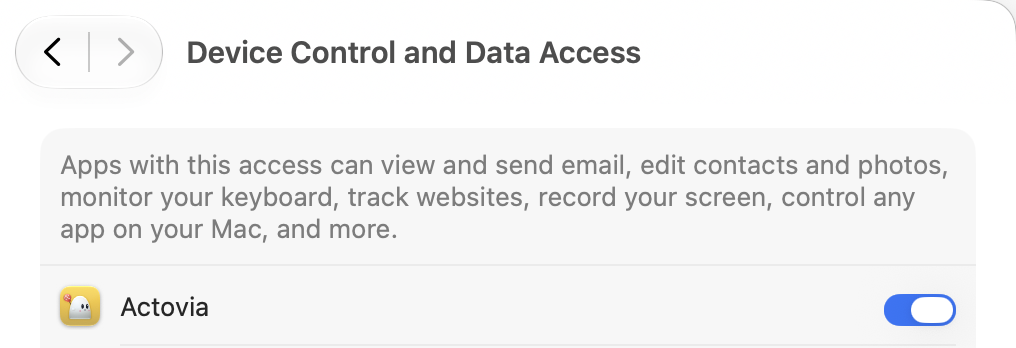
Computer Use needs two macOS permissions, both for Actovia itself. Open System Settings → Privacy & Security and, on each of the two pages below, switch Actovia on — or, if it is not in the list, click + and choose Actovia from Applications. Quit and reopen Actovia afterwards: macOS applies the change on the next launch.
- Accessibility lets it move the pointer and type. On macOS 27 the page is called Device Control and Data Access.
- Screen Recording lets it see the window it works in. The page is called Screen & System Audio Recording.
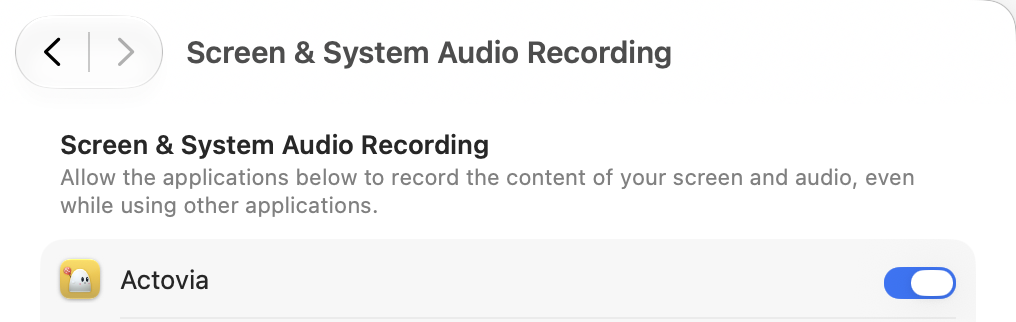
Without Screen Recording it cannot see the window; without Accessibility its clicks and keystrokes do nothing.
Watching a session
Ask for something in an allowlisted app ("write a line in Notes") and a Computer Use card follows each step with its screenshot and action (Step 3: click …). If the model needs you, it asks in the card — Type a reply, or leave blank when done. Stop ends the session, and so does ⌥⇧⎋ (Option-Shift-Escape) from anywhere. Every session is logged.
